
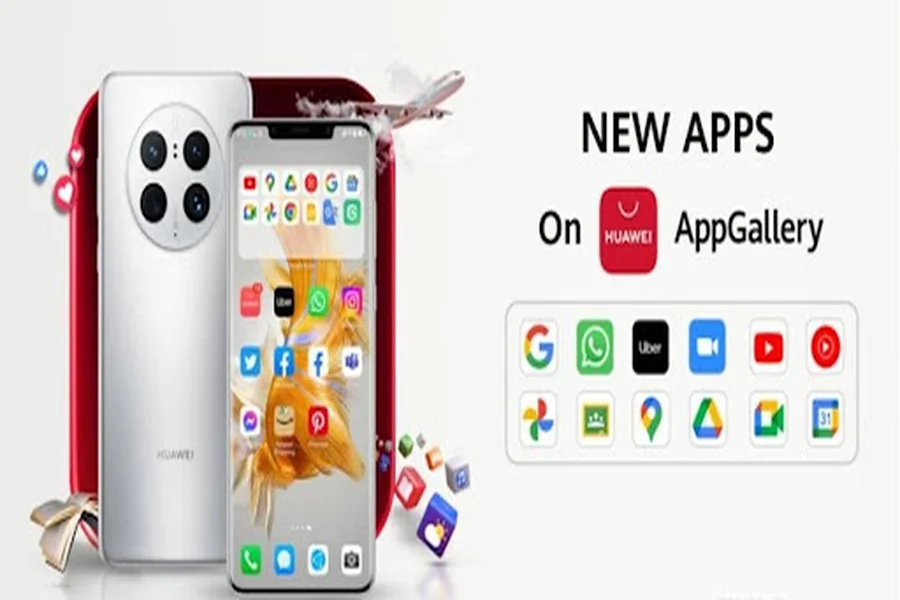
Google Classroom is a widely used tool for both educators and students. However, accessing it on Huawei devices can be a bit challenging since these devices don’t have Google Mobile Services directly. Luckily, you can still access Google Classroom for huawei through the Huawei AppGallery by following a few additional steps. This guide will walk you through installing and using Google Classroom on your Huawei device, ensuring you can efficiently manage your digital classroom activities without any hassle.
Steps to Access Google Classroom via AppGallery
Discover how to get Google Classroom on your Huawei device using AppGallery in straightforward steps outlined below.
Check Device Compatibility
Before you start, confirm your Huawei phone’s compatibility with external apps. Not all device models support every application due to hardware or software constraints. Visit your device settings and check for any compatibility guidelines provided by Huawei. It might be useful to look for device specifications and see if they can handle newer applications or APKs effectively. Also, ensure your device has sufficient storage space to accommodate Google Classroom and any of its associated files. Checking these details in advance prevents issues during installation and use.
Use Petal Search to Locate Google Classroom APK
Petal Search is an efficient helper for finding APK files for apps unavailable on AppGallery. To locate Google Classroom, open Petal Search on your Huawei device and type “Google Classroom APK.” Analyze the search results to find a trusted site hosting the genuine version of the app. Look for well-reviewed and frequently updated sources — this ensures you’re obtaining the most secure and up-to-date version. After identifying the appropriate APK, click the download link, keeping track of its location on your device for easy access during installation.
Enable “Install from Unknown Sources.”
Your Huawei device is typically set to block installations from unknown sources for security reasons. To adjust this setting, go to “Settings,” select “Security,” then “Install apps from external sources.” Choose your preferred browser or file manager, and toggle the switch to allow installations. This step is crucial for enabling Google Classroom to be installed from the APK file you’ve downloaded. Remember to revert these settings when not in use to enhance device security, minimizing risks from untrusted applications in the future.
Download and Install Google Classroom
Now you’re ready to download Google Classroom. Go back to the Petal Search or your browser’s download folder to locate the Google Classroom APK. Tap to initiate the installation process and follow the on-screen prompts. Ensure you have a stable internet connection throughout to prevent any installation errors. Once installed, the Google Classroom icon should appear on your home screen. Confirm that the app opens correctly, and check initial settings to customize your classroom experience for optimal use.
Log In and Start Using the App
Open Google Classroom and log in using your Google account credentials. If you don’t have an existing account, you can create one within the app. Familiarize yourself with the interface by navigating through the different class features, such as assignments, announcements, and classwork. This setup ensures you can efficiently participate in your classes, turning your device into a powerful educational tool. Feel free to explore features to maximize your educational interaction among peers and educators under a secure, personalized account.

Alternative Methods to Access Google Classroom
Consider these options if the previous method doesn’t work for you.
Use a Browser Version on Huawei Phones
You can access Google Classroom directly through a web browser. Open your preferred browser, like Huawei’s default, and visit the Google Classroom website. Logging in requires your existing Google account or setting up a new one within the browser. This method should work efficiently, but may encounter occasional limitations in features compared to the app. Despite these constraints, the browser version offers most of the functionality necessary for students and educators, ensuring seamless participation in educational tasks.
Use Third-Party App Stores
Aside from Petal Search, third-party app stores like APKMirror or Aptoide can be used to access Google Classroom APKs. Install these apps by following similar steps to enabling “install from unknown sources.” Once installed, use their search functionality to find Google Classroom, making sure to select versions that are compatible with your Huawei device specifications. Regularly check user reviews and ratings on these stores to ensure app reliability and maintain the security of your device with updated app versions.
Safety Tips When Installing APKs Outside AppGallery
Enhancing security when installing apps outside official stores is crucial.
Download Only from Trusted Sources
Prioritize the security of your device by downloading APKs from reputable sources. Renowned sites often verify their content, reducing the risk of malware. Always double-check the URL before downloading, and opt for sites recommended by Huawei or acknowledged tech communities. Trustworthy sources ensure authentic applications that do not compromise your device’s integrity. Avoid forums and sites with unfamiliar third-party apps as they pose the risk of introducing malware to your device.
Scan APK Files for Malware
Before installation, scanning for malware using built-in device security features or a reliable antivirus app is essential. These tools assess APK files for potential security threats, safeguarding your device from malicious software. Enable regular scans and updates to ensure your device’s protection. The extra vigilance helps maintain your data’s confidentiality, especially when handling sensitive information through educational apps like Google Classroom.
Keep Your Device Software Updated
Keeping software updated is as crucial as using trusted APKs for phone security. Huawei regularly releases updates that fix vulnerabilities and improve performance. Enable automatic updates for seamless maintenance or manually update through settings. Regular software updates contribute to a more robust security framework, allowing safe utilization of apps like Google Classroom within its continually secured ecosystem.
Conclusion
Accessing Google Classroom on Huawei devices using AppGallery and alternative methods has been made much simpler with the steps outlined here. Whether you’re downloading the APK or using a browser version, each method is designed to maintain security while providing access to essential educational tools. Adhering to safety tips during installation guarantees you a secure and efficient digital classroom experience. By following these guidelines, you remain at the forefront of technology while engaging in educational pursuits.